10 Hidden Secrets of VS Code’s Task Runner That Will Change Your Workflow
VS Code is packed with features that many developers overlook, and one of the most transformative is its built-in task runner. While most of us still type repetitive commands in a terminal or waste time switching between windows to run scripts, the task runner quietly automates all of that—directly inside your editor. Once you discover it, you’ll wonder how you ever worked without it. Here are 10 things you need to know about VS Code’s task runner, from setup to advanced tricks that can save you hours every week.
1. What Is a Task Runner and Why Should You Care?
At its core, the task runner in VS Code is a tool that lets you define and execute automated sequences of commands—like building, testing, linting, or deploying—without leaving the editor. Instead of manually typing npm run build or python script.py every time, you create a task once and run it with a keyboard shortcut or a single click. This not only saves time but also reduces errors from mistyped commands. The feature is built into VS Code and works with any language or tool, making it universally useful for front-end, back-end, or even DevOps tasks. Once you start using it, you’ll notice how much smoother your daily workflow becomes.
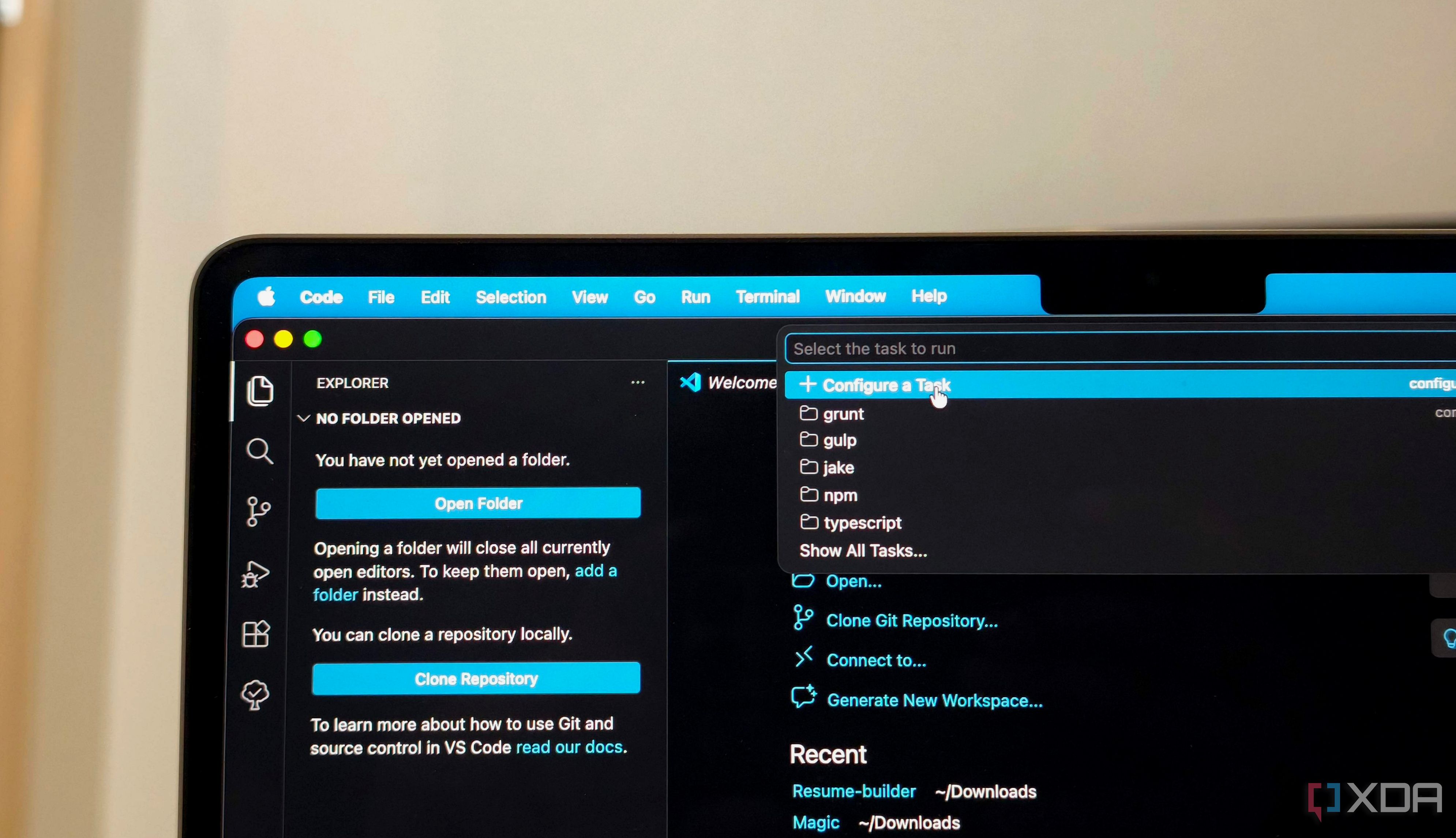
2. How to Create Your First Task (It’s Easier Than You Think)
Setting up a task is straightforward. Open the command palette (Ctrl+Shift+P) and run “Tasks: Configure Task”. VS Code will scan your workspace for common task runners (like npm, gulp, or Make) and offer to create a tasks.json file. If you don’t have one, you can start from a template. For example, to run a simple shell command, define a task like this: {"label": "Run build", "type": "shell", "command": "npm run build"}. Once saved, you can run it via the Terminal menu or assign a custom keybinding. The beauty is that you don’t need to learn a new configuration language—most tasks are just JSON with a command. Learn about task types next.
3. Understand the Two Main Task Types: Shell vs Process
VS Code tasks come in two flavors: shell and process. A shell task runs your command inside the default shell (bash, zsh, PowerShell, etc.), which allows you to use pipes, variables, and other shell features. This is great for simple scripts or multi-step commands like npm run lint && npm run test. A process task, on the other hand, runs the command directly as a child process without shell interpretation. It’s faster and more secure because it avoids shell injection risks, but you lose shell syntax. For most developers, shell tasks are the go-to, but choose a process task when you need precision and speed—or when the command itself is self-contained, like a compiled binary.
4. How Task Runners Save You From Repetitive Terminal Drudgery
The most obvious benefit is eliminating manual repetition. If you run the same command 20 times a day—like starting a dev server, running tests, or minifying CSS—the task runner turns that into a single keystroke. No more switching to a terminal window, typing the command, waiting, and switching back. This might not sound huge, but over a week it can add up to hours of saved time. Plus, you avoid context switching, which research shows reduces productivity. With tasks, you stay focused in your editor, and the output is displayed in a dedicated terminal panel right below your code. You can even set tasks to run automatically on file save or as part of a build pipeline.
5. Customize Tasks with Arguments and Environment Variables
Sometimes you need to run a command with different parameters depending on the situation. VS Code’s task runner supports inputs and problem matchers. For example, you can define a task that prompts you for a version number before running a deploy script. Use the inputs array in tasks.json to create pick lists or text fields. You can also set options.env to pass environment variables, like API keys or configuration paths. This makes tasks dynamic and reusable across different projects or environments. Imagine a task that asks which branch to build—the runner adapts without you editing the command each time.
6. Combine Tasks into a Build Chain with Dependencies
One of the most powerful features is the ability to chain tasks using dependsOn. You can define a task that depends on others completing first. For example, a “Full Build” task might depend on “Clean Dist”, “Lint”, and “Test” tasks. VS Code runs them in order, and if one fails, the chain stops. This is perfect for complex workflows like compiling TypeScript, running unit tests, and bundling assets in one go. You can also set group to “build” or “test” to make tasks appear in the editor’s status bar for quick access. With dependencies, you can automate your entire CI-like pipeline locally, ensuring consistency.
7. Use Problem Matchers to Catch Errors Instantly
One hidden gem is the problem matcher. When you run a task, VS Code can parse the output for errors or warnings and display them in the Problems panel, just like linters. This is incredibly useful for tools that output logs but don’t have VS Code extensions. You can either use a built-in matcher (like for TypeScript or ESLint) or write a custom regex to capture file paths, line numbers, and messages. Suddenly, running a task not only executes your code but also gives you a clickable list of issues to fix right from the editor. See how to integrate this with other extensions.
8. Integrate with Extensions for Even More Power
VS Code’s task runner works hand-in-hand with many popular extensions. For example, the Tasks extension by actboy168 adds a sidebar UI for managing tasks. The Gulp extension can automatically create tasks from your gulpfile.js. The npm extension integrates with the built-in task runner to show npm scripts as tasks in the explorer. You can also use the Run on Save extension to trigger tasks automatically when you save a file—ideal for compilers or linters that you want to run constantly. The best part is that these extensions just make tasks easier to discover and trigger; they all rely on the same underlying tasks.json file.
9. Keyboard Shortcuts That Make Tasks Lightning Fast
To truly harness the power of tasks, map them to keyboard shortcuts. Open Keyboard Shortcuts (Ctrl+K Ctrl+S) and search for “Tasks: Run Task”, then bind it to a convenient key, like Ctrl+Shift+R. For individual tasks, you can assign custom chords by specifying a key in the task’s JSON. For example, add "key": "ctrl+shift+b" to a build task. You can even assign tasks to function keys or sequences. Once memorized, these shortcuts let you run complex operations in under a second, without ever touching your mouse. The time saved is measurable—especially when you break the habit of reaching for the terminal.
10. Advanced Tips: Variables, Task Reuse, and Multi-Root Workspaces
For power users, the task runner supports variables like ${workspaceFolder}, ${file}, or ${userHome} inside commands—making tasks context-aware. You can also reuse task definitions across projects by using the .code-workflow setup or referencing tasks from an extension. If you work with multi‑root workspaces (multiple folders open), tasks can be defined per folder or globally. Another tip: use the presentation property to control how the terminal panel behaves—e.g., reveal always, echo, or focus. Mastering these advanced features transforms the task runner from a simple automation tool into a cornerstone of your daily development environment.
Conclusion: The VS Code task runner is one of those features that, once you start using it, makes you wonder why you didn’t discover it sooner. It’s not flashy, but it’s incredibly practical—automating repetitive commands, reducing errors, and keeping you in the flow. Whether you’re a beginner just learning JSON or a seasoned developer building complex build chains, the task runner has something to offer. Start with one simple task, then gradually add more as you see the time savings. Your future self will thank you.
Related Articles
- OpenCode: New Open-Source AI Coding Agent Transforms Terminal-Based Python Development
- How to Supercharge Your Python Coding in VS Code: Two Powerful Features from the March 2026 Update
- Python Insider Blog Relaunches on Git-Based Platform, Opens Community Contributions
- Streamline Your Go Projects: How `go fix` Automates Code Modernization
- Mastering Spec-Driven Development: A Step-by-Step Guide to Reliable Code Generation
- AI Tools Surge in Developer Workflows but Trust Remains Key Hurdle, Survey Reveals
- Go 1.26 Introduces Rewritten `go fix` for Automatic Code Modernization
- Guide to Results from the 2025 Go Developer Survey