Terminal Mastery: Why the Command Line Endures and How to Supercharge Your Shell
In an era of sleek graphical interfaces, the humble command line might seem like a relic. Yet, for many power users, developers, and system administrators, the terminal remains an indispensable tool—offering unparalleled precision, speed, and flexibility. This Q&A explores the enduring appeal of the shell, contrasts it with GUI-based computing, and shares practical tips for tricking out your terminal for maximum productivity.
Why is the command line still relevant today despite modern graphical interfaces?
The command line thrives because it excels at tasks that graphical user interfaces (GUIs) handle clumsily. When you click through menus, you're essentially pointing and grunting “do that” to your computer—a limited vocabulary that relies on context. In contrast, the shell lets you issue precise, composable commands. For instance, a single line can rename hundreds of files, search through gigabytes of logs, or automate repetitive tasks—all without touching a mouse. Furthermore, many server environments lack a GUI entirely, making command-line skills essential for remote management. The terminal also offers a level of transparency: you see exactly what the computer does, and you can chain commands together using pipes and redirection, turning simple tools into powerful workflows. Finally, with modern terminal emulators and frameworks like tmux, the command line has become a customizable canvas for power users, maintaining its relevance even as GUIs evolve.
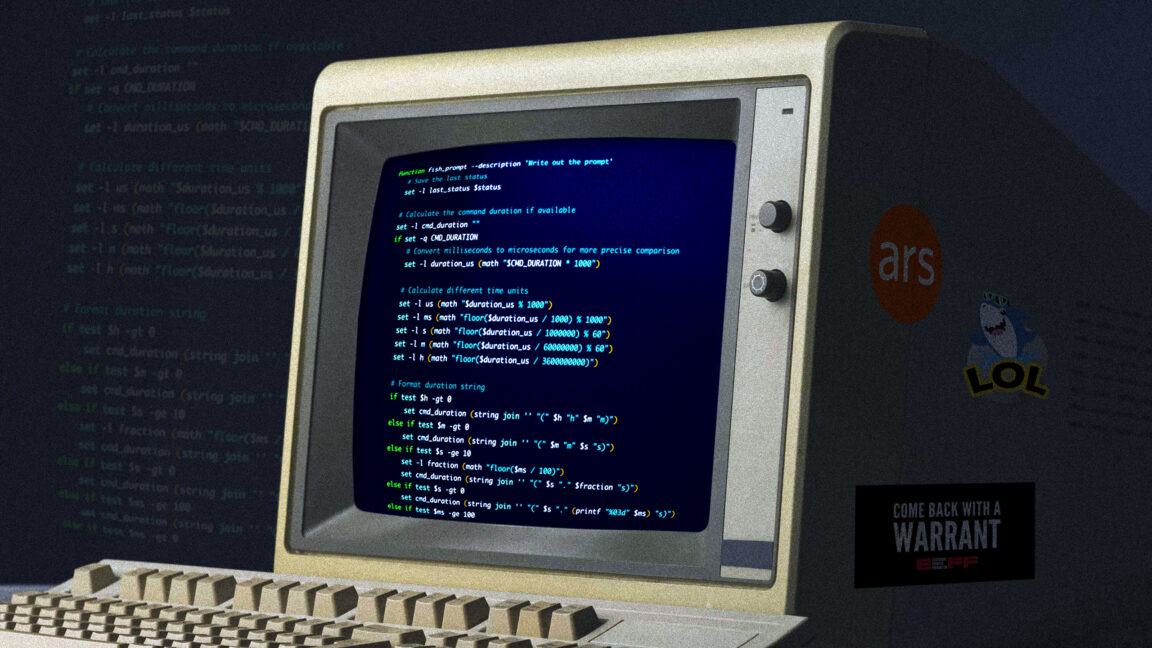
How does a shell compare to a traditional point-and-click interface in terms of user control?
The fundamental difference lies in vocabulary. A GUI reduces user input to a small set of gestures: click, double-click, drag, right-click for context menus. While convenient for casual use, this approach limits what you can express. The shell, on the other hand, offers a rich language of commands, flags, arguments, and scripting. You can tell the computer exactly what to do—not just “open this file,” but “find all .log files modified in the last 24 hours, compress them, and email the archive.” This precision reduces ambiguity and errors. Moreover, the shell supports automation: you can save sequences of commands as scripts, schedule them, and reuse them across different contexts. The trade-off is a steeper learning curve, but once mastered, the terminal gives you a level of control that no mouse-driven interface can match.
What are some popular customizations for making a terminal both powerful and visually appealing?
Customizing your terminal can dramatically boost efficiency and enjoyment. Popular enhancements include:
- Prompt themes: Tools like Oh My Zsh, Powerline, and Starship let you style your command prompt with useful information (Git branch, exit codes, timestamps) using colors and icons.
- Aliases and functions: Shortcuts for frequently used commands—e.g.,
alias ll='ls -la'—save keystrokes. More complex functions can automate multi-step tasks. - Plugins and completions: Auto-suggestions, syntax highlighting, and intelligent tab completion (fzf for fuzzy finding) reduce memorization and errors.
- Terminal multiplexers: Tools like tmux or screen allow you to split windows, manage multiple sessions, and detach/re-attach to remote sessions.
- Color schemes and fonts: Monokai, Solarized, or custom themes, combined with powerline-patched fonts (e.g., Fira Code), improve readability and aesthetics.
These customizations not only make the terminal look modern but also boost productivity by reducing context switching and providing instant feedback.
How can a well-configured shell improve day-to-day productivity?
An optimized shell reduces friction in common tasks. For example, fuzzy finder (fzf) lets you quickly locate and open files without typing full paths. Zsh with Oh My Zsh provides built-in aliases for Git, Docker, and npm, turning git status into gst and making version control more fluid. Snippet managers like pet store frequently used command patterns. Additionally, directory jumping tools (z, autojump) learn your habits and teleport you to often-visited folders. Combined with a clear, color-coded prompt that shows the current Git branch and exit status, you can catch errors instantly and maintain a fast workflow. These small efficiency gains compound over a day, saving hours each week and reducing mental strain. Ultimately, a tricked-out terminal transforms the shell from a bare command line into a personal productivity powerhouse.
What was the early history of command-line interfaces versus GUIs, and why did text survive?
In the early 1990s, MS-DOS was often derided as a primitive, text-only environment, with GUIs like Windows and AmigaOS heralding a new era. Many believed graphical interfaces would totally supplant the command line. However, the terminal didn't disappear; it retreated to where it was most effective: system administration, programming, and server management. The command line's scriptability and remote access capabilities gave it a lifeline. Even as GUIs became standard for consumers, professionals found that text interfaces allowed precise, repeatable actions unencumbered by mouse movements. Additionally, the rise of Unix and Linux in the server room reinforced the command line's place. Today, the terminal has experienced a renaissance, with developers embracing tools like iTerm2, Windows Terminal, and WSL, proving that text interfaces and graphical ones can coexist—each serving tasks they handle best.
What are some essential tools or tips for beginners looking to start customizing their terminal?
Begin with the basics: choose a modern shell like Zsh (or Fish) over the default Bash, and install a framework such as Oh My Zsh. This immediately gives you themes and plugins. Next, learn to create aliases for your most-used commands—edit your .zshrc file and add entries like alias gs='git status'. Experiment with a prompt theme (e.g., “agnoster” or “powerlevel10k”) to show Git info and current directory. For navigation, install z (or autojump) and a fuzzy finder like fzf. Configure syntax highlighting and auto-suggestions with zsh-syntax-highlighting and zsh-autosuggestions. Finally, explore a terminal multiplexer (tmux) to manage multiple sessions. Start small—don’t try to do everything at once. Each customization should solve a real friction point. There are many online guides and communities (r/unixporn for inspiration) to help you tailor the terminal to your style and needs.
Will the command line ever become obsolete, or is it here to stay?
The command line is unlikely to disappear because it offers a fundamentally different paradigm: text-based, composable, and automatable. While GUIs evolve with touch, voice, and AR, the shell remains the most efficient interface for many technical tasks. Cloud computing, DevOps, and infrastructure-as-code rely heavily on terminal commands. Moreover, the open-source community continuously innovates on terminal tools—modern terminal emulators now support GPU acceleration, split panes, and even native graphics. The command line also benefits from universality: once you learn the shell, you can work on virtually any system, from a Raspberry Pi to a supercomputer. As long as there are tasks requiring precise control and repeatability, the terminal will have a place. That said, it will coexist with GUIs, each serving its strengths—the command line for raw power, and graphical interfaces for discovery and casual use.
Related Articles
- Revised GUARD Act Still Poses Major Privacy and Free Speech Risks, Critics Warn
- How to Build a Unified Context Layer for AI Agents Using Airbyte
- AWS Unleashes Claude Opus 4.7 and AWS Interconnect GA in Dual Cloud Breakthrough
- 10 Key Insights into Cursor's New SDK: Developer Reactions and Real-World Implications
- OpenAI Launches Chrome Extension for Codex, Enabling AI Agents to Navigate Live Web Sessions
- The GUARD Act Revised: A Practical Guide to Understanding Its Ongoing Risks
- How to Build Your First AI Agent with Microsoft Agent Framework
- Mastering AWS's Latest: A Guide to Claude Opus 4.7 on Bedrock and AWS Interconnect