Avoid the CPU Bottleneck: How to Maximize Your Graphics Card's Performance
Overview
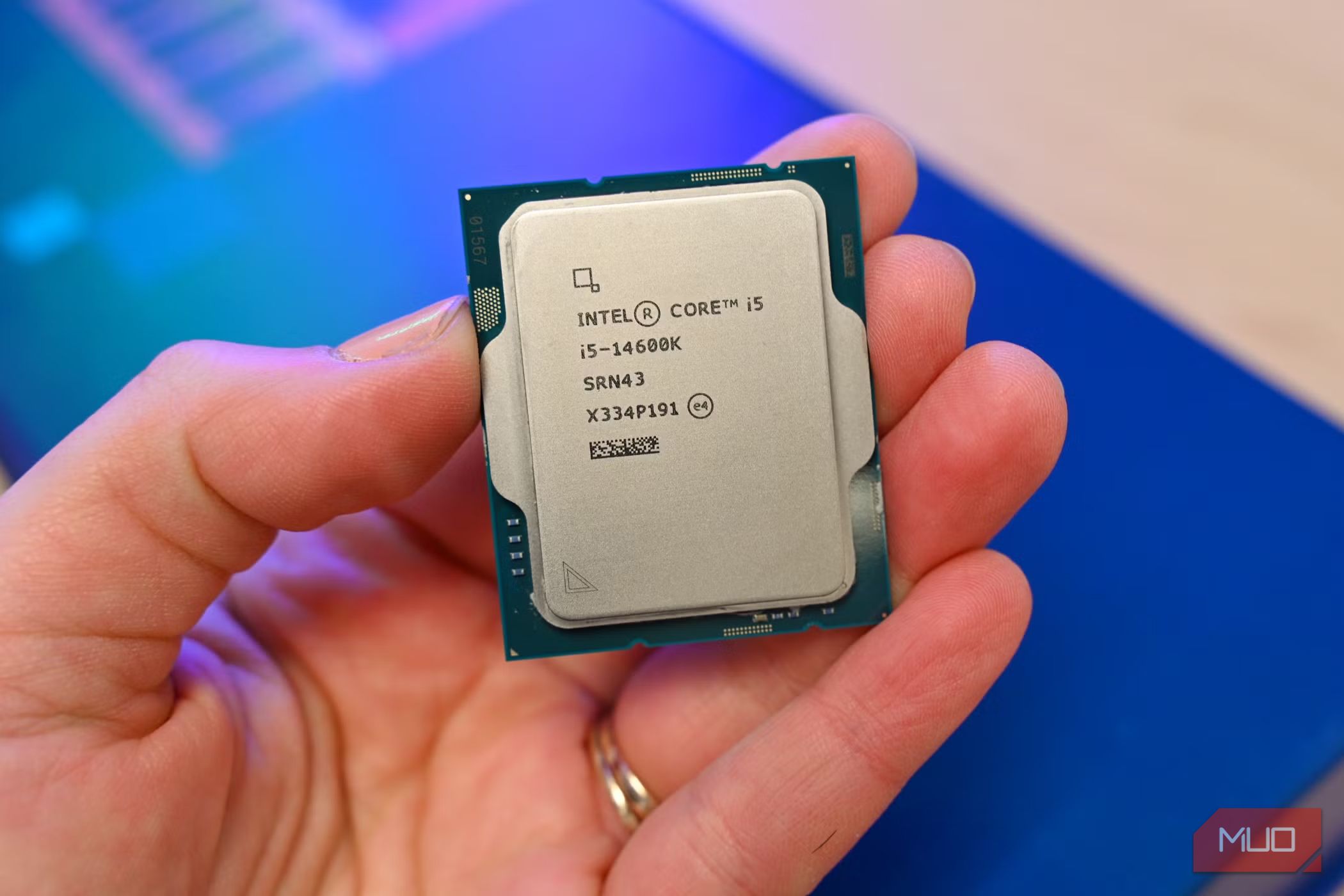
You've just unboxed a shiny new graphics card, installed it with trembling fingers, and booted up your favorite game. Instead of silky-smooth frame rates, you're met with stuttering, sudden drops, and a nagging feeling that you didn't get your money's worth. Before you blame the GPU itself, consider a more insidious culprit: the CPU bottleneck. This occurs when your processor can't keep up with the demands of your graphics card, forcing the GPU to idle while it waits for instructions. The result is wasted potential and disappointing performance. This guide will walk you through identifying, understanding, and fixing a CPU bottleneck so you can unlock the full power of your new GPU.
Prerequisites
- Basic knowledge of PC components (CPU, GPU, motherboard, RAM, PSU).
- Monitoring software like MSI Afterburner, GPU-Z, CPU-Z, or HWMonitor (free downloads).
- Benchmarking tools such as 3DMark, Unigine Heaven, or in-game benchmarks.
- Optional: Overclocking utilities (e.g., Intel XTU, AMD Ryzen Master) if you plan to tweak settings.
- Patience – diagnosing bottlenecks can take a few test runs.
Step-by-Step Instructions
Step 1: Check Your GPU and CPU Combo
Start by noting the exact models. For the CPU, open Task Manager (Ctrl+Shift+Esc) → Performance tab → CPU. For the GPU, open Device Manager or GPU-Z. Write down:
- CPU: e.g., Intel Core i5-10400F, AMD Ryzen 5 3600
- GPU: e.g., NVIDIA GeForce RTX 3070, AMD Radeon RX 6800
Tip: The generation and core count matter more than clock speed alone.
Step 2: Determine If a Bottleneck Exists
Run a game or a demanding benchmark while monitoring GPU usage. Follow these steps:
- Open MSI Afterburner (or similar). Enable overlay to show GPU usage % and CPU usage per core.
- Launch a game at a moderate resolution (1080p is best for testing bottlenecks).
- Observe GPU usage: if it stays below 90-95% while CPU usage is near 100% on one or more cores, you have a CPU bottleneck.
- Alternatively, if GPU usage is high (95-99%) and CPU usage is moderate, the GPU is the limiting factor – that's normal.
Example: You have an RTX 3080 paired with an Intel Core i3-10100. At 1080p, the GPU usage might hover at 60-70% while CPU cores are pegged at 100%. That's a clear bottleneck.
Step 3: Mitigate the Bottleneck – Software and Settings Tweaks
Before buying new hardware, try these adjustments:
- Increase resolution or graphical settings – This shifts more work to the GPU, easing CPU pressure. Play at 1440p or 4K if possible, or crank up anti-aliasing, shadows, and texture quality.
- Enable resolution scaling (DLSS/FSR) – NVIDIA DLSS or AMD FSR can render at a lower internal resolution and upscale, which reduces CPU load while maintaining visual quality.
- Reduce CPU-heavy settings – Lower draw distance, physics quality, or number of NPCs in open-world games.
- Cap the frame rate – If your CPU can only handle 60 FPS, capping at 60 prevents the GPU from pushing useless frames.
- Update drivers and BIOS – Outdated firmware can hamper CPU efficiency.
- Close background apps – Many apps (Chrome tabs, Discord) eat CPU cycles.
Step 4: Overclock Your CPU (If Supported)
Overclocking can squeeze extra performance from your processor. Be cautious and ensure adequate cooling.
- Intel K-series & AMD Ryzen (most models) allow overclocking. Use Intel XTU or Ryzen Master.
- Increase multiplier or base clock in small increments (e.g., +100 MHz).
- Stress test with Prime95 or Cinebench to check stability and temperatures.
- Apply a stable overclock and re-test the game – expect 5-15% improvement in CPU-bound scenarios.
Warning: Overclocking voids warranties and can damage hardware if done incorrectly. Proceed at your own risk.
Step 5: Consider a CPU Upgrade (The Ultimate Fix)
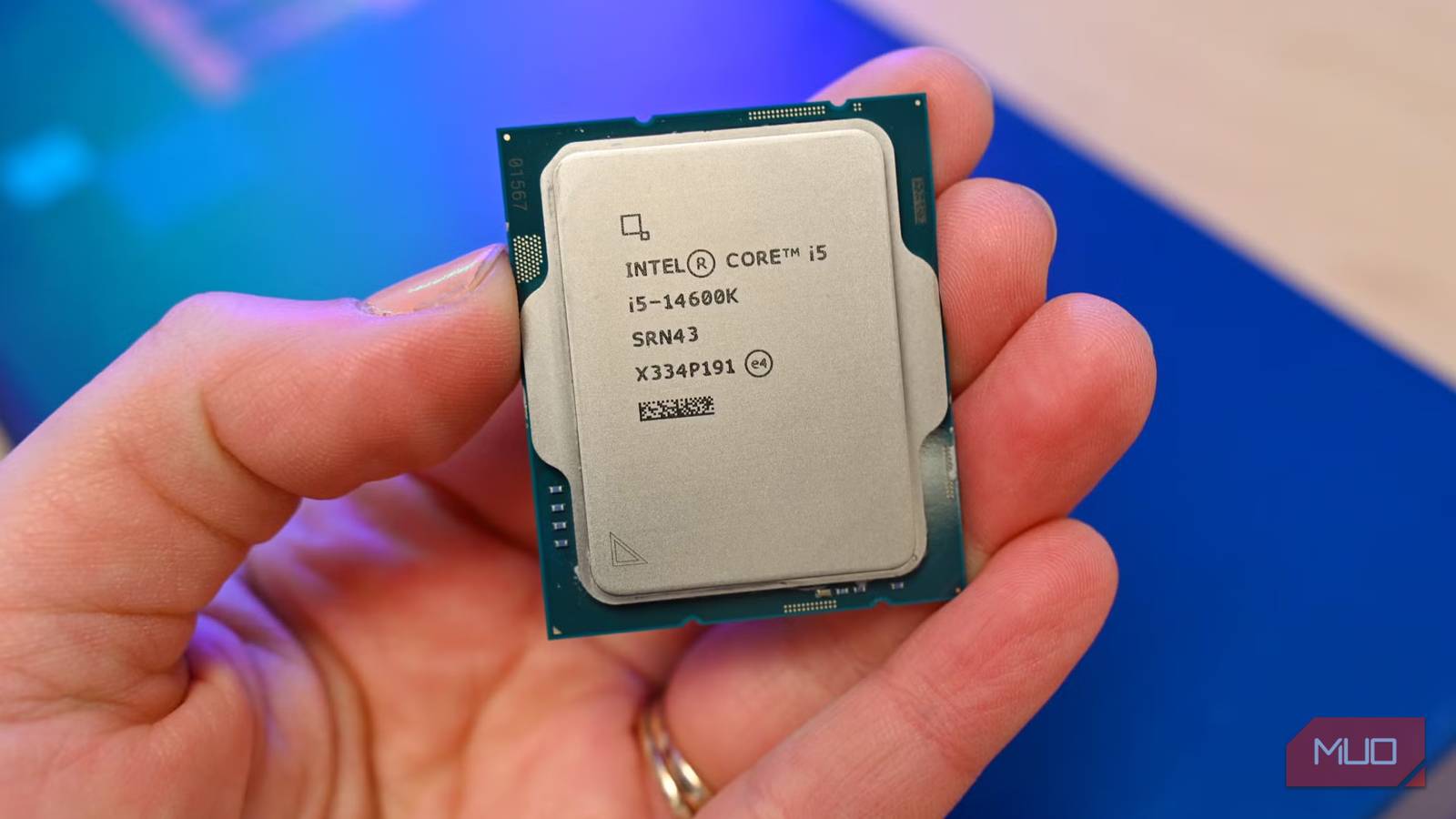
If software tweaks and overclocking aren't enough, you may need a new CPU. Look for:
- Higher core count (e.g., 6-core to 8-core for modern games).
- Better single-thread performance – Check benchmarks like PassMark single-thread score.
- Compatibility – Ensure your motherboard socket and chipset support the upgrade (e.g., LGA 1200 for Intel 10th/11th gen, AM4 for Ryzen 3000/5000).
- Budget – Sometimes a used CPU from the same generation offers a big leap (e.g., Ryzen 5 3600 to Ryzen 7 5800X3D).
After upgrading, re-test with the monitoring tools – you should see GPU usage rise above 90%.
Common Mistakes
Assuming All Bottlenecks Are CPU-Related
A low frame rate can also stem from insufficient RAM, a slow SSD, or thermal throttling. Always check multiple components before concluding it's the CPU.
Ignoring the Impact of Resolution
Bottlenecks are most apparent at lower resolutions (1080p). At 4K, even a modest CPU can keep up because the GPU is heavily loaded. If you play at high resolutions, a bottleneck may be less noticeable.
Buying a High-End GPU for an Old CPU
Pairing an RTX 4090 with an Intel Core i5-7600K is a recipe for disappointment. Research balance – spend proportionally on CPU and GPU based on your intended resolution and frame rate targets.
Overlooking Single-Thread Performance
Many games still rely heavily on one or two CPU cores. A CPU with excellent single-thread speed (e.g., Intel Core i9-13900K) often performs better in games than a many-core Xeon.
Forgetting to Monitor GPU Usage
Some users only check CPU usage. If CPU usage is high but GPU usage is low, it's a bottleneck. If both are high, the system is well-balanced.
Summary
A CPU bottleneck can turn your expensive graphics card into an underperforming paperweight. By identifying the issue through monitoring tools, adjusting game settings, overclocking, or upgrading your processor, you can restore the balance and enjoy the high frame rates you paid for. Remember: a PC is only as strong as its weakest link. Always pair components wisely, and test your system under real gaming conditions to ensure harmonious performance. If you follow the steps above, your new GPU will finally live up to its potential.
Related Articles
- Exploring NVIDIA's Open Ising Models for Quantum Computing Challenges
- Why Cost per Token Is the True Measure of AI Infrastructure ROI
- 7 Ways Tanzu Platform's 15-Year Head Start Prepares You for the AI Revolution
- 7 Key Advances in Intel's Crescent Island GPU Driver for Linux 7.2
- SPIFFE Emerges as Critical Identity Solution for Rogue AI Agents and Non-Human Workloads
- Host Your Own AI Compute Node: A Step-by-Step Guide to Earning Bill Credits
- Preparing Linux for AMD CPPC HighestFreq: A Hands-On Guide
- Breaking: SPIFFE Framework Emerges as Critical Solution for Securing Autonomous AI Identities